
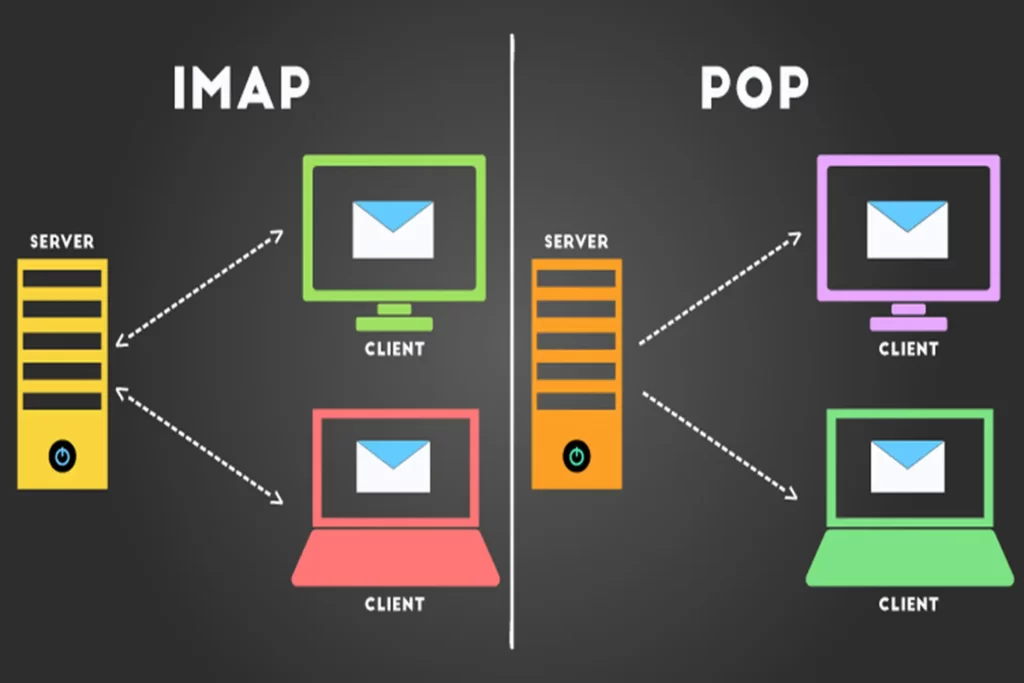
The error “IMAP Auth process broken 993” generally means that the authentication (auth) daemon for IMAP (port 993 = IMAPS) is either not running/unresponsive, or there is an SSL/TLS, socket permission, or service blockage issue. Below is a diagnostic checklist and practical commands (for Linux machines) — execute them step-by-step, read the output, and fix according to the instructions.
1) Check IMAP Service (e.g., Dovecot, Courier)
If you are using Dovecot:
Bash
sudo systemctl status dovecot
sudo journalctl -u dovecot -n 200
sudo dovecot -n          # show dovecot config (check auth, ssl, sockets)
If you are using Courier:
Bash
sudo systemctl status courier-authdaemon
sudo journalctl -u courier-authdaemon -n 200
Goal: See that the service is active (running); if it crashes or restarts frequently, check the logs for the reason.
2) Check Mail Logs for Detailed Errors
Common log files:
Bash
sudo tail -n 200 /var/log/mail.log
sudo tail -n 200 /var/log/maillog
sudo grep -i "auth" /var/log/mail.log | tail -n 100
Look for lines like: auth: Fatal: ..., imap-login: Disconnected ..., auth: Error: ... — copy these lines if you need to post them here.
3) Check Socket/Auth Permissions (because “auth process broken” is often due to sockets)
Dovecot example:
Bash
sudo ls -l /var/run/dovecot/
sudo ls -l /var/run/dovecot/auth-client
Or:
Bash
sudo ls -l /var/run/dovecot/*auth*
If the socket doesn’t exist or the permissions are wrong — dovecot-auth cannot communicate. Fix the permissions or owner according to the config; the owner is usually dovecot:dovecot or root:dovecot.
4) Check Port 993 Listening and Process
Bash
ss -ltnp | grep :993
sudo lsof -iTCP:993 -sTCP:LISTEN -Pn
You must see the process (dovecot, courier-imapd, cyrus-imapd) LISTENING on 0.0.0.0:993 or a specific IP.
5) Check SSL/TLS (a broken/expired certificate or an unreadable key can cause an auth error)
Test the TLS handshake:
Bash
openssl s_client -connect your.domain.tld:993 -crlf -servername your.domain.tld
Observe: Is the certificate chain displayed? Are there errors like SSL routines:... or handshake failure? If the certificate is wrong/expired, replace the certificate (Let’s Encrypt or another cert) and reload dovecot. Related Dovecot config:
Bash
sudo dovecot -n | grep -i ssl
Check if the ssl_cert and ssl_key paths in the config exist and if the dovecot user has read permission.
6) Check Authentication Mechanism (PAM, passwd-file, LDAP, SQL)
If you use SQL/LDAP for auth, try testing with the doveadm command:
Bash
sudo doveadm auth test username@example.com password
The result will indicate if the backend is responding or failing. If it reports a DB/LDAP connection error — fix the backend configuration.
7) Check fail2ban / Firewall / SELinux
Fail2ban might be blocking the client IP:
Bash
sudo fail2ban-client status
sudo fail2ban-client status dovecot
Firewall:
Bash
sudo iptables -L -n | grep 993
sudo ss -ltnp | grep 993
SELinux (CentOS/RHEL): check audit logs or try temporarily disabling it for testing:
Bash
sestatus
# (careful) sudo setenforce 0    # test only
8) Check File Descriptor / ulimit if auth crashes due to resource
Bash
sudo cat /proc/$(pidof dovecot)/limits
If the process is killed due to too many connections — adjust the service/ulimits.
9) Safe Restart and Temporary Debugging (if needed)
Enable debugging in the dovecot config (auth_debug=yes, auth_debug_passwords=yes) and then restart to see details:
Bash
sudo sed -n '1,200p' /etc/dovecot/dovecot.conf   # or /etc/dovecot/conf.d/*
# Enable debug in conf, then:
sudo systemctl restart dovecot
sudo journalctl -u dovecot -f
Note: Do not leave debugging enabled on production for long, as it will log passwords.
10) “Quick Fix” Commands (Temporary attempt)
Bash
sudo systemctl restart dovecot
sudo systemctl daemon-reload
sudo systemctl restart dovecot
(Sometimes just a restart fixes the issue if the process was hung). But if the config is wrong, the restart will fail — check journalctl immediately.

Bài Viết Liên Quan
A Complete Guide to Choosing Hosting and VPS Solutions for WordPress and WooCommerce Websites
How to Reissue SSL Certificates for a Domain in CyberPanel Using Both the Control Panel and SSH
WordPress 7.0: The Biggest Transformation in Years as AI Officially Becomes Part of the Platform
Comparing Avada, Flatsome, Porto, WoodMart, and BeTheme with WooCommerce
Flatsome Is Not Just for eCommerce: A Powerful Choice for Blogs and News Websites
What is CyberPanel and why it is one of the best free control panels for PHP
Bài Viết Cùng thể loại
WordPress Updated from 6.9.3 to 6.9.4 Within One Day: What Happened and Should You Be Concerned?
Check if your VPS has been hacked for unusual resource usage.
The Silent Shield for Servers in an Age of Cyber Attacks
WordPress VPS Crashes After Using JetBrains AI + GitHub Copilot — How a Quick Fix Saved RAM and Wiped Out Malware
WooCommerce and Major Security Warnings: Hard Lessons for the WordPress E-Commerce Ecosystem
Guide to Installing ClamAV to Run Securely and Stably with ModSecurity and CSF on CyberPanel