
Instruct
Check if your VPS has been hacked for unusual resource usage.
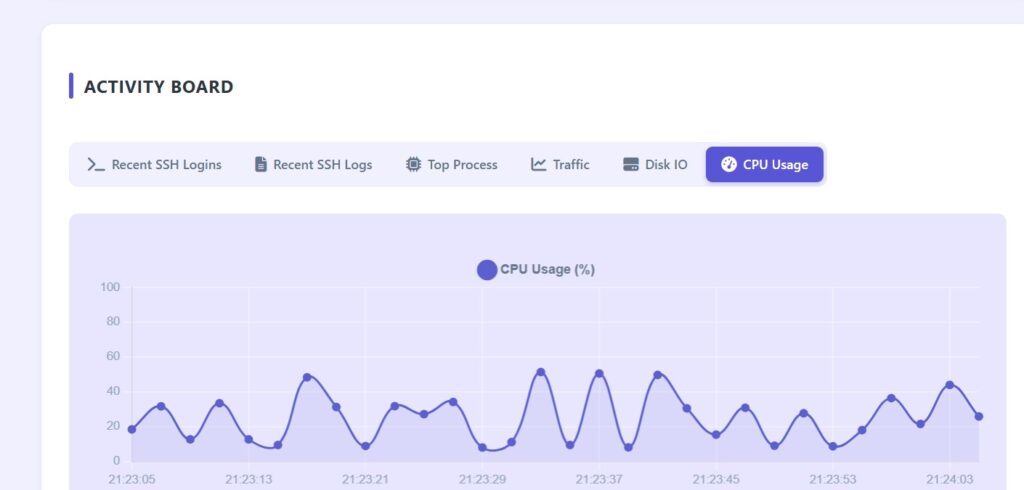
When a VPS running CyberPanel suddenly becomes noticeably slower, pages take longer to load, and CPU and RAM usage frequently spike even though traffic has not increased, it is rarely a coincidence. Behind these symptoms there is often an abnormal process consuming resources, a website that has been injected with malware, or a server being constantly exploited by bots and automated tools on the Internet. Proper investigation should be carried out both from the control panel interface and at the operating system level through SSH to get the full picture.
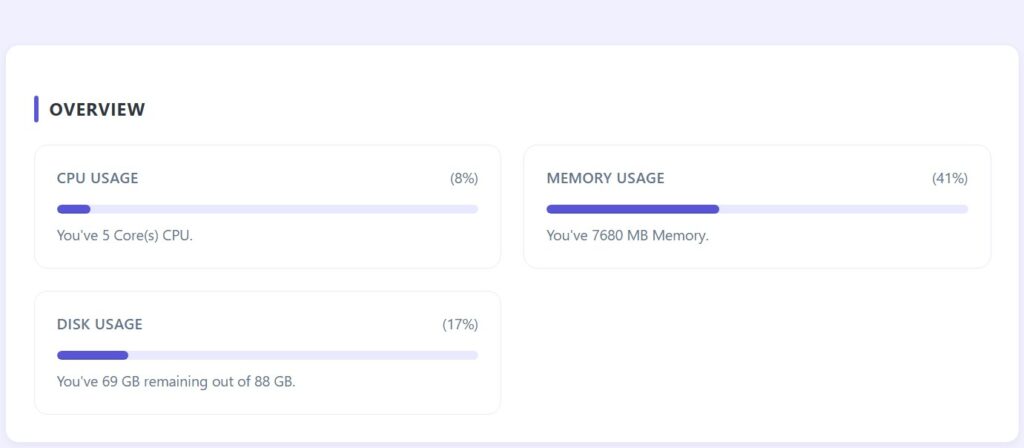
Right on the CyberPanel dashboard, the graphs for CPU, RAM, and disk usage already reflect the overall health of the system. When CPU usage stays high for long periods, you should log in via SSH to see which process is generating the heavy load. After connecting to the VPS with an administrative account, you can monitor system resources in real time with the following command.
top
The list shows which processes are using the most CPU and memory. To sort by CPU usage from highest to lowest, press Shift and P inside the interface. To see more details about a suspicious process, including the command that started it, use the following command with the corresponding PID.
ps -fp PID
In many cases, the htop utility provides a more user friendly and visual display. If it is not installed, you can install and run it immediately.
yum install htop -y
htop
Or on Ubuntu systems.
apt install htop -y
htop
If RAM is nearly full and the system begins using swap space on disk, performance will drop sharply. You can quickly check memory status with the command below.
free -m
At the same time, disk storage should also be reviewed. When disk usage grows abnormally fast, check which partition is consuming the most space.
df -h
To find the directories using the most space in the area where websites are stored, you can run:
du -h --max-depth=1 /home | sort -hr | head -n 10
If you suspect a specific website, go deeper into that user’s directory.
du -h --max-depth=1 /home/username | sort -hr | head -n 10
CyberPanel’s file manager helps you view source code directly, but through SSH you can quickly search for PHP files that were recently modified, which is extremely useful when malware injection is suspected.
find /home -type f -name "*.php" -mtime -2
The results show PHP files changed in the last two days. If you did not update the website but still see many modified files, they should be inspected immediately. To locate code patterns commonly used by malware to hide its behavior, search through the source like this:
grep -R "base64_decode" /home
grep -R "eval(" /home
grep -R "gzinflate" /home
These functions are not always malicious, but if they appear in unfamiliar files or heavily obfuscated code, there is a high chance of infection.
Access logs in CyberPanel reveal unusual traffic, but from SSH you can quickly count the number of active connections to the web server.
netstat -antp | grep :80 | wc -l
If this number is far higher than normal, the server may be experiencing a request flood. To see which IP addresses are generating the most connections, use:
netstat -antp | grep :80 | awk '{print $5}' | cut -d: -f1 | sort | uniq -c | sort -n | tail
This list helps identify suspicious IPs to block at the firewall level. If you suspect the VPS is being abused to send spam emails, check the mail queue on the system. On servers using Exim, the following command shows the total number of emails waiting to be delivered.
exim -bpc
If the number is unusually high, you can view the queue details with:
exim -bp
Besides resource usage and network traffic, system user accounts must also be reviewed. The following command lists all users on the server.
cat /etc/passwd
If you notice unknown accounts with shell access, the server may have been compromised at a deeper level. Another place attackers often use to maintain persistence is scheduled tasks. Check the current user’s scheduled jobs with:
crontab -l
Then review system wide cron directories.
ls /etc/cron*
If you find commands executing unknown files from temporary or website directories, immediate action is required, as this is a common method for malware to reinstall itself after removal.
All of these checks make one thing clear. CyberPanel offers a convenient surface level overview, while SSH allows you to dive deep into the operating system to pinpoint exactly why the VPS is consuming excessive resources. When you detect warning signs such as unknown processes, unauthorized file modifications, sudden spikes in network connections, or a rapidly growing mail queue, the first step should be changing all critical passwords. After that, isolate any infected websites and begin cleaning the system thoroughly. Only by eliminating the root cause can the VPS truly return to a stable state instead of continuing to be silently exploited for its resources.

Bài Viết Liên Quan
A Complete Guide to Choosing Hosting and VPS Solutions for WordPress and WooCommerce Websites
How to Reissue SSL Certificates for a Domain in CyberPanel Using Both the Control Panel and SSH
Comparing Avada, Flatsome, Porto, WoodMart, and BeTheme with WooCommerce
Redis from Installation to Operation: A Complete Guide and How to Fix the “Failed listening on port 6379 (tcp)” Error
CSF, A Powerful and Easy to Control Firewall for Linux Servers
WordPress VPS Crashes After Using JetBrains AI + GitHub Copilot — How a Quick Fix Saved RAM and Wiped Out Malware
Bài Viết Cùng thể loại
WordPress Updated from 6.9.3 to 6.9.4 Within One Day: What Happened and Should You Be Concerned?
The Silent Shield for Servers in an Age of Cyber Attacks
WordPress VPS Crashes After Using JetBrains AI + GitHub Copilot — How a Quick Fix Saved RAM and Wiped Out Malware
WooCommerce and Major Security Warnings: Hard Lessons for the WordPress E-Commerce Ecosystem
“IMAP Auth process broken 993” Error
Guide to Installing ClamAV to Run Securely and Stably with ModSecurity and CSF on CyberPanel